
Communication
The communication action is one of the key actions in the process chain of a dunning process. This action type is added to the workflow to define communication content and channel to reach out to the customers with dunning receivables. It usually contains payment reminders, dunning communications or other regular information to clients.
A communication action always consists of at least one main communication channel, which can be defined as an email, SMS or letter. Fallbacks can be defined in case the main channel fails. In case the first fallback (Fallback 1) fails, the second fallback will be triggered (Fallback 2).
Communication - Configuration
-
Time of Sending:
The timing for sending communication can be set to one of the following options:-
AI time decision within business hours (default): AI determines the optimal time to send the communication during defined business hours.
-
Immediate execution: The communication is sent immediately after the previous action, regardless of the time of day (e.g. messages may be sent at night). This option is useful for cases triggered by your customer that require immediate attention, e.g. payment on delivery or upselling in-store with online products available.
-
Nearest business hour: Communication is triggered at the next eligible business hour based on the defined business hours.
Example:
Given-
Business hours defined as between 09:00 and 17:00at workflow settings level
-
Workflow has communication 1 set with the setting sent on nearest business hour active
-
Claim 1 assigned at 5:00
-
Claim 2 assigned at 13:30
-
Claim 3 assigned at 18:30
-
-
Result:
-
The workflow engine will try execute the communication for the claims (dependant on load) as close as possible (but not before) on the following times
-
Customer of claim 1 receives communication at 9:00
-
Customer of claim 2 receives communication at 13:30
-
Customer of claim 3 receives communication at 9:00 of the next day
-
-
-
-
AI decides the sending order of channels: The AI selects the most effective channel from those configured. If the primary channel fails, the fallback channels are used instead. At least two communication channels must be configured to enable this setting.
-
Communication channels:
-
Main Channel: The required primary channel (email, SMS, or letter). Channel-specific content configuration applies.
-
Fallback Channels: Applied if the main channel fails (e.g., due to missing contact details).
-
The order of the channels can be changed by clicking:

-
-
Attachments:
-
Attachments can be added to an Email or letter by clicking the
 icon on the bottom of the communication channels. In the following modal dialogue, attachments can be activated and filtered according to the 'Tags' of the uploaded attachments. Activating attachments will attach all uploaded documents in a claim to this message. If no documents are found, the message will not be sent. If filters are set, only the defined documents will be attached.
Each attachment can have multiple ‘tags’ that need to be defined when uploading the file via API. By adding ‘tags’ to this filter, only documents with precisely matching ‘tags’ are attached to the message. Separate ‘tags’ by using commas (,).
-
Communication - editing of content
Clicking on the  Icon will open the editing view of the content.

On this page following settings need to be defined:
-
A template must be chosen.
-
Content needs to be defined for each language that the workflow is configured for. Languages can be toggled on the top right.
-
The subject needs to be defined for all languages (mandatory).
-
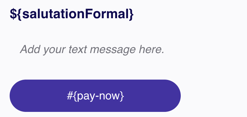
Editable text fields must be filled in (this is mandatory), e.g.:
-
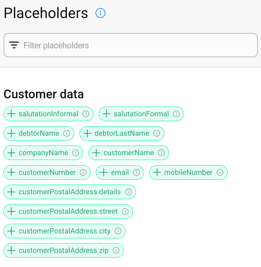
Placeholders for the subject or text fields can be accessed by clicking on:

-
A list showing a grouped view of the entry fields will be displayed:
-
-
The control panel in the bottom right-hand corner allows you to:
-
Apply predefined sample data to the preview
-
Switch between the desktop or mobile preview versions
-
You can also be forwarded to the template section of the merchant settings to open the template directly and start editing.
-
Fee
The fee action adds a dunning fee to the claim. The fee action is usually followed by a communication action.
-
The fee can be configured to be added in any of the ISO4217 currencies.
-
The fee is restricted to allow only positive values
Schedule
The schedule action can be used to define the processing of subsequent actions in accordance with the workflow canvas.
-
Days between actions:
-
This defines the number of days between the start of the previous action and the start of the next action. Note that the actual processing time may be longer due to calendar constraints configured at the workflow settings level (e.g. only process on weekdays, Monday to Friday). Therefore, the defined value here is the minimum number of days between two subsequent actions. Example:
-
Given:
-
Claim 1 is executing the Action 1 on Thursday
-
Workflow settings are defined to execute only from Mon - Fri
-
The interval between Actions 1 and 2 is set to 2 days
-
-
Result:
-
So the workflow engine would usually plan the execution of Action 2 for Saturday, but will execute on Monday because of the calendar constraints
-
-
-
It’s default value is 1 and it can contain values from 0 to 365 .
-
-
Ignore operational calendar constraints from the workflow settings:
-
Due to calendar constraints, the actual execution interval between two subsequent actions may differ from the defined interval of days in the workflow, which could affect the outcome of this example. This setting can be used to control whether these calendar constraints should be taken into account. If the setting is active, calendars will be ignored and the next step will be scheduled according to the exact number of days defined as the interval between the two actions.
-
The default value is inactive.
-
Payment options
The payment options are applicable for all subsequent actions until the next payment options action, which may have different settings and will overwrite the former settings.
-
Inheriting Payment Methods:
-
If enabled (default), payment methods from merchant settings.
-
If disabled, a subset of payment methods can be selected.
-
-
Instalment Plan Profiles:
-
A predefined instalment plan from merchant settings can be applied.
-
If none is selected (default), no instalment plan will be offered.
-
Checkpoint
Reaching a checkpoint triggers a checkpoint_reached webhook. The step name is included in the request payload. The target URL must be configured in merchant settings.
End of process / Archive
The archive action is included by default as the final step in all workflows. Once a claim reaches the archive action:
-
Payments on the landing page are no longer possible.
-
The period before archiving must be explicitly defined. Newly created workflows use a 10-day offset for this setting by default.
A grace period exists between archiving a claim and fully anonymising or deleting its data. This grace period can be configured in the merchant settings by your collect.AI account manager.
